Use results in Timelapse
Timelapse is a separate program for reviewing camera trap photos. It runs on Windows only, and you can get it from its download page. AddaxAI writes a recognition file that Timelapse reads, so you can go through the AI results inside Timelapse.
Timelapse needs the recognition file inside the folder it reads. A folder run writes it there when you save the results, subfolders included. A project writes one into each deployment folder from the Export page, with your labels and corrections, so open Timelapse on a deployment folder and import the file from there. Either way you import the file into Timelapse as described below.
Video tutorial
Prefer to watch? This video shows the round trip from Timelapse to AddaxAI and back.
Steps
-
Start AddaxAI on your folder. Two ways:
-
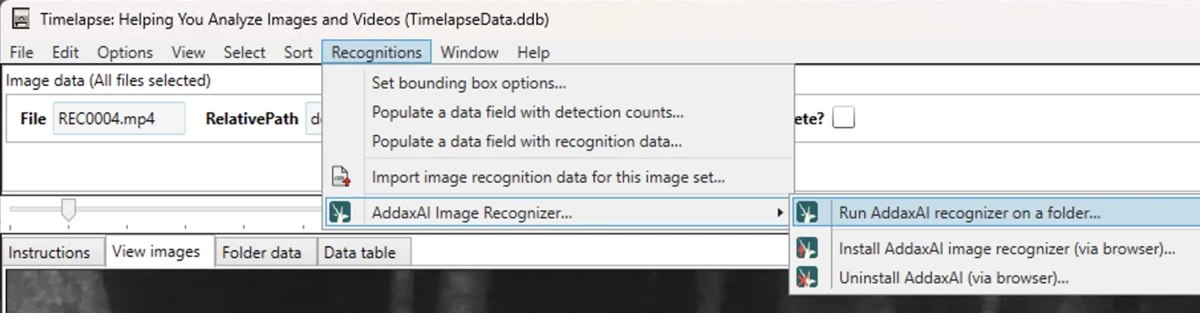
From Timelapse: choose Recognitions > AddaxAI Image Recognizer > Run AddaxAI recognizer on a folder. AddaxAI opens "Analyse a folder" with that folder already filled in. By default AddaxAI also writes the recognition file where Timelapse expects it.
-
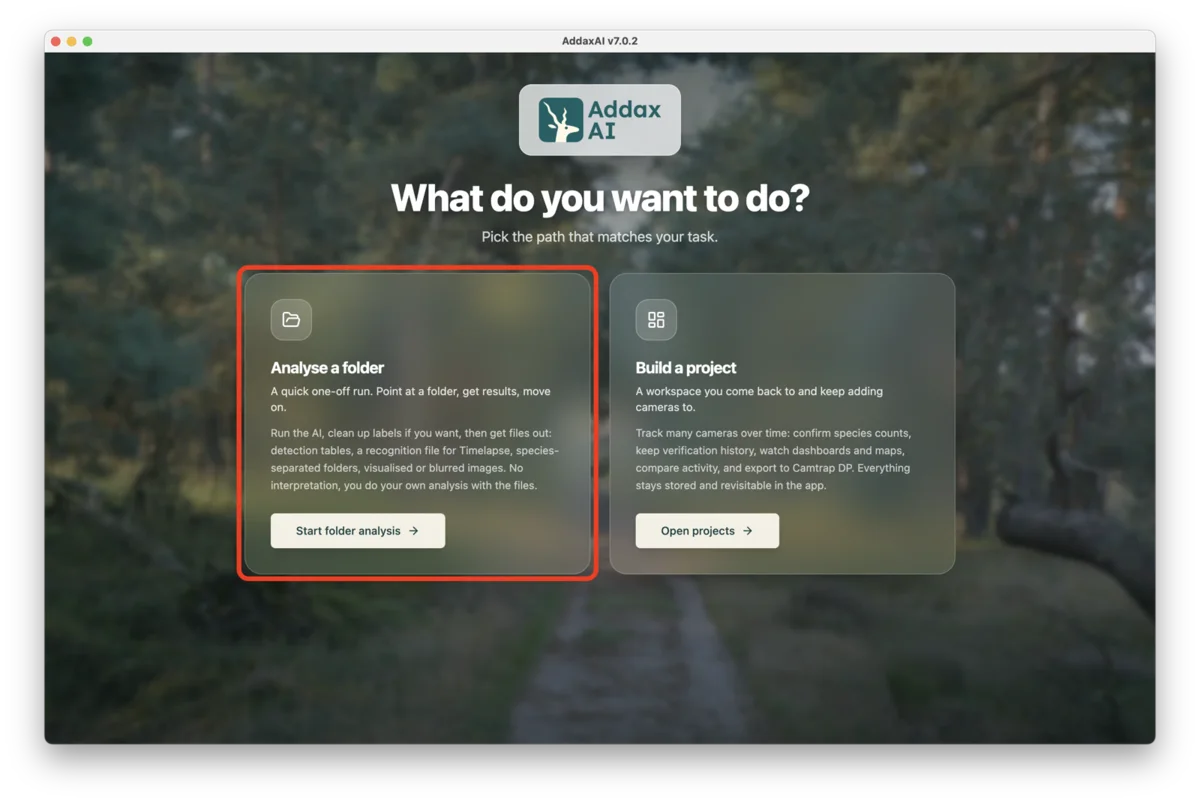
From AddaxAI: start a folder analysis on the folder yourself.
-
-
Run the folder analysis as normal. Nothing here is Timelapse-specific. See analyse a folder.
-
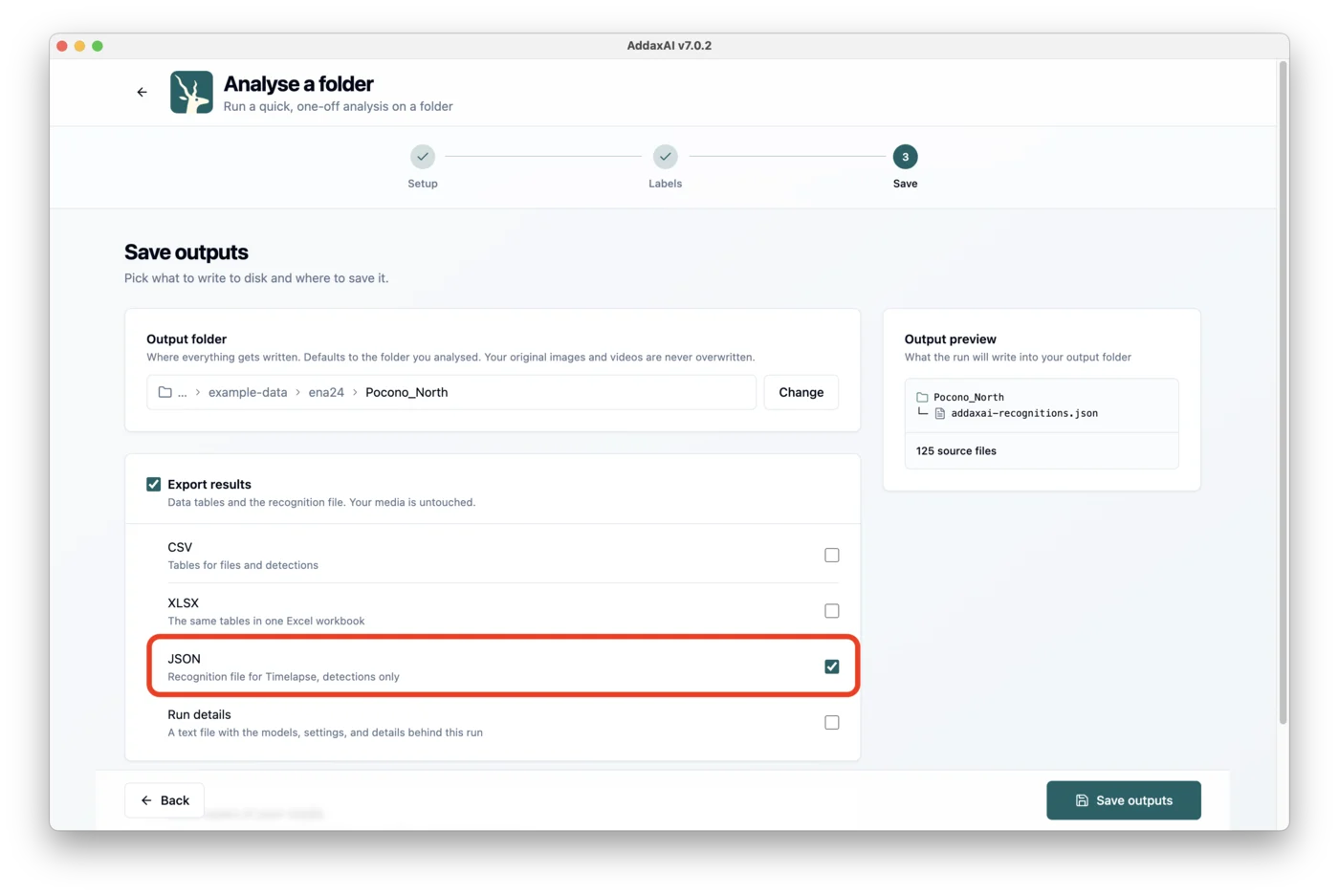
Save the recognition file. In the save step, check that JSON, the recognition file for Timelapse, is on. AddaxAI writes the file next to your photos. Leave both as they are.
-
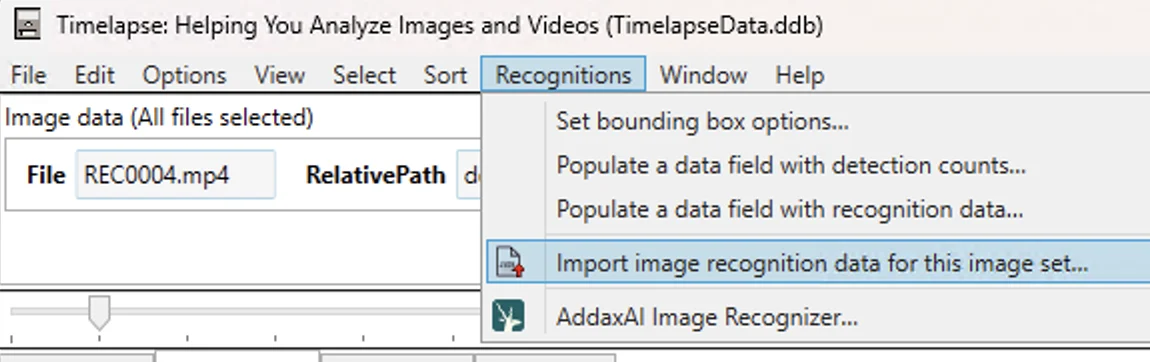
Import into Timelapse. Choose Recognitions > Import image recognition data for this image set, then pick the file.
For more detail on the Timelapse side, see their image recognition guide.