Dates, times and timezones
Camera trap analysis lives or dies on time. This page explains where AddaxAI gets the time, and what it does when the time is missing.
Where the time comes from
From the file itself. For photos it reads the capture time written by the camera, and for videos the equivalent field. The time is stored exactly as the camera recorded it, nothing is converted.
You always see camera time
The app shows the time the camera wrote, not the time on your computer. This matters if you analyse data from another country. A photo taken at 23:00 in Kenya shows as 23:00, even if you are sitting in California. If it were converted to your local time it would read as midday, so every night photo would land in the middle of the day and your activity charts would be wrong.
What the project timezone is for
A project has a timezone setting. It works out when the sun rises and sets at your site, for the day and night bands on the activity charts, and it fills in the offset on the timestamps you export, so a Camtrap DP file says what those times mean to someone else. It never changes the times shown or stored, so set it to match how the cameras were configured. If your cameras stay on winter time all year, choose a fixed offset zone rather than a country, so the app does not apply summer time.
Files with no date
Some files have no readable capture time. Cameras get reset, files get edited, some formats lose it. AddaxAI never invents one by itself, but there are two ways you can supply it. Both are last resorts: they only apply to files with no readable time of their own, so a real capture time always wins.
-
Put the time in the filename. End the name with
addaxai-YYYYMMDD-HHMMSSbefore the extension, for exampleclip_addaxai-20250222-072314.mp4. AddaxAI reads the time from the name. -
Use the file dates from your computer. When a scan finds no capture times at all, AddaxAI offers a checkbox for this, and shows you the date range those file dates would give before you tick it. Read that range first. A folder you copied last week often reads as last week, not as the week the animals walked past, and then every date in your project is wrong.
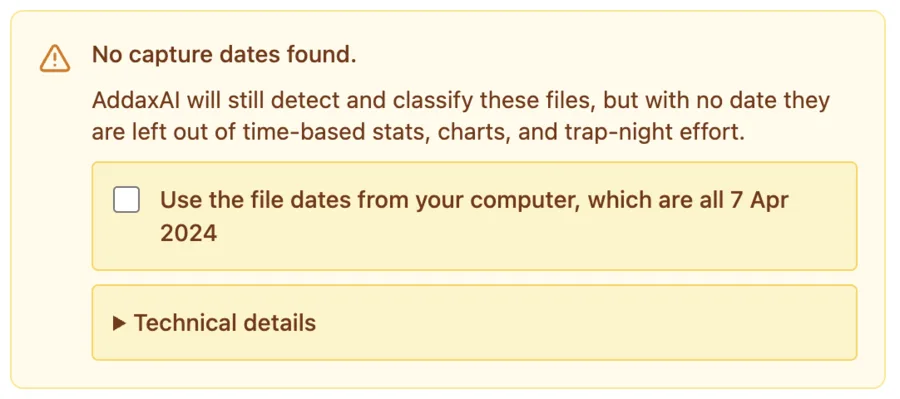
A file that still has no time is analysed anyway. You keep the detections and the species, and they still count in your species totals, because the file becomes an event of its own. But it drops out of anything that needs a date:
- it does not count towards trap nights
- it does not appear in the trend or activity charts
- it is never grouped with other files, even ones taken at the same moment
The app tells you how many files this affected after an analysis. If the number is large, fix the camera clock settings and analyse again.
Wrong camera clocks
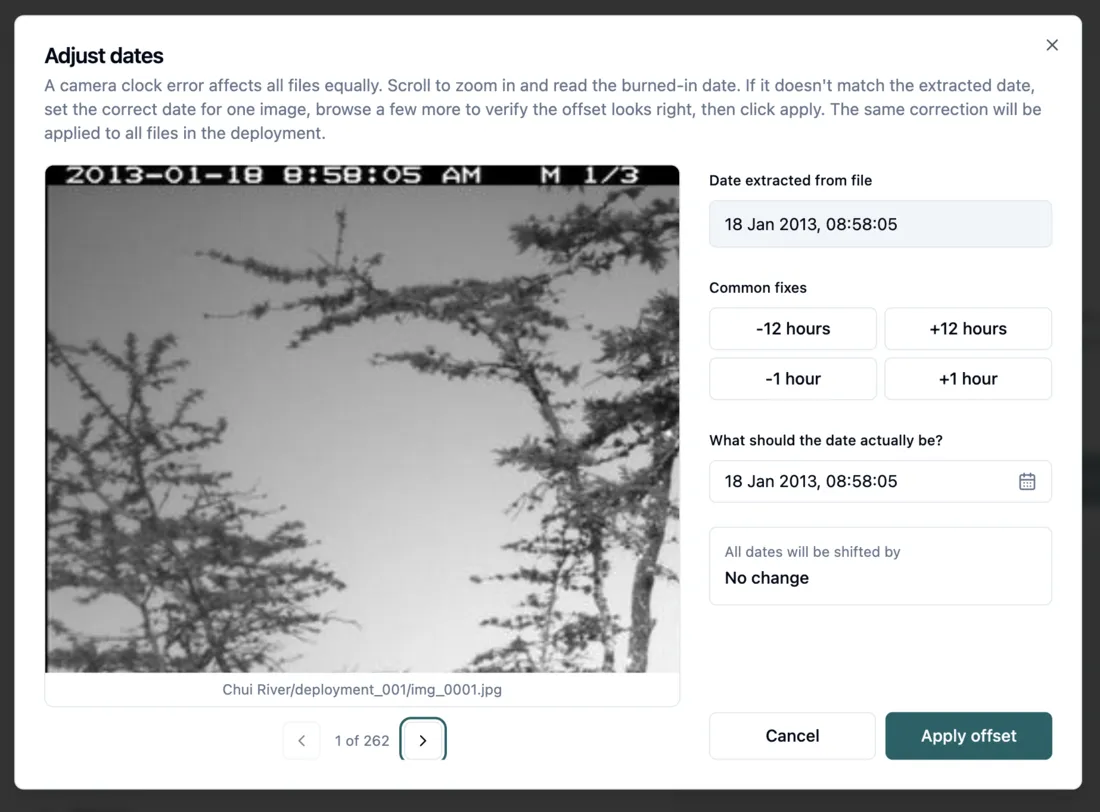
If a camera had the wrong date set, the photos carry that wrong date, and AddaxAI stores what the camera said. You can correct it with a time shift, which applies to every file in that deployment at once. There are two places to set it: on the Process page while you add the deployment, or afterwards on the Deployments page, where the deployment's metadata has a Datetime offset button.
Both open the same Adjust dates window. It shows one image next to the date AddaxAI read from the file. Compare that with the date the camera burned into the photo, set what it should have been, and page through a few more images to check the shift looks right before you apply it.
Doing this after an analysis is safe. AddaxAI shifts the stored times and updates the dates, events and charts, so you do not have to analyse again.
Paired cameras
For a paired deployment the Adjust dates window has a camera dropdown. It only shows once "Paired cameras" is ticked. "All cameras" shifts the whole deployment. "Only cam1" shifts that camera alone.
Changing a camera's shift after an analysis regroups the deployment's events and reprocesses the labels. Confirmed counts on events that change are reset.