Back up and restore
AddaxAI keeps copies of your database, so a mistake or a crash does not cost you your work. This page covers what happens on its own, how to make a copy yourself, and how to go back to one.
Only the database is copied. That is your projects, deployments, labels, corrections and confirmed counts. Your photos and videos are never touched by any of this, and they are far too large to copy, so back those up the way you normally would.
What happens automatically
The app copies the database into backups/ once a day when it starts, before an update that changes the database, and before you restore an older copy. It keeps the five newest of each kind, so the folder does not grow forever. You do not have to do anything for this to work. If you want to see them, use File > Open backups folder.
Make one yourself
Use File > Back up database. You can save into the backups folder, or into a folder you pick yourself, an external drive for example. Backups you make yourself are never deleted automatically, so this is also the way to move your work to another computer or hand it to a colleague.
You can give the backup a short note, like "before the big run". The note becomes part of the file name, and you see it again in the restore list, so you can tell your backups apart later.
Go back to an earlier copy
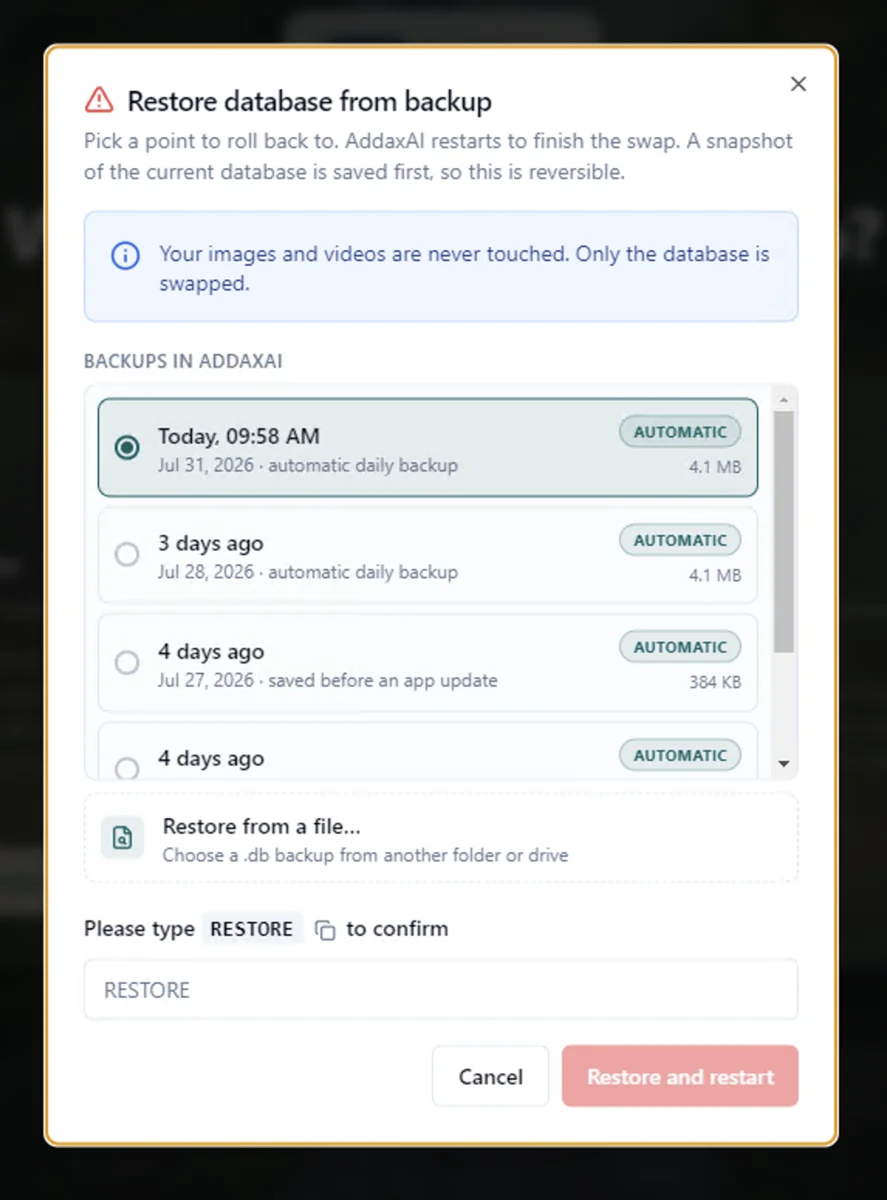
Use File > Restore from backup. You get a list of restore points, newest first, each with its date and the reason it exists: a daily backup, one saved before an app update, one saved before an earlier restore, or one you saved yourself, with your note if you gave it one. Pick one, type RESTORE to confirm, and the app restarts to swap it in. If your copy is in a folder of your own, use restore from a file instead.
Two things to know before you do it. A restore is reversible, because AddaxAI saves the current database as a backup first. But a restore is a rollback, not a merge: everything you did after that copy was taken is gone. So pick the newest point that still has what you need.
If the app will not open
Sometimes the database itself is what stops the app, and then nothing loads and the menu is out of reach. When AddaxAI can tell that the database is the problem, the error screen offers the same two ways out. Restore from backup opens a picker straight into the backups folder. Delete database and start fresh wipes it and begins again, and that one also takes a copy first, so even it can be undone.
If you get an error screen without those two buttons, then something else is wrong. See troubleshooting.